> ## Documentation Index
> Fetch the complete documentation index at: https://docs.inboxapp.com/llms.txt
> Use this file to discover all available pages before exploring further.
# Sequences, personalization, and scheduling
> Add follow-up steps, insert lead fields into messages, set send times, and compare copy with split lists.
Available on Pro. See [Plans](/get-started/plans).
All of these are set while you create or edit a campaign — [Create your first campaign](/help/campaigns/build/create-your-first-campaign).
## Multi-step sequences
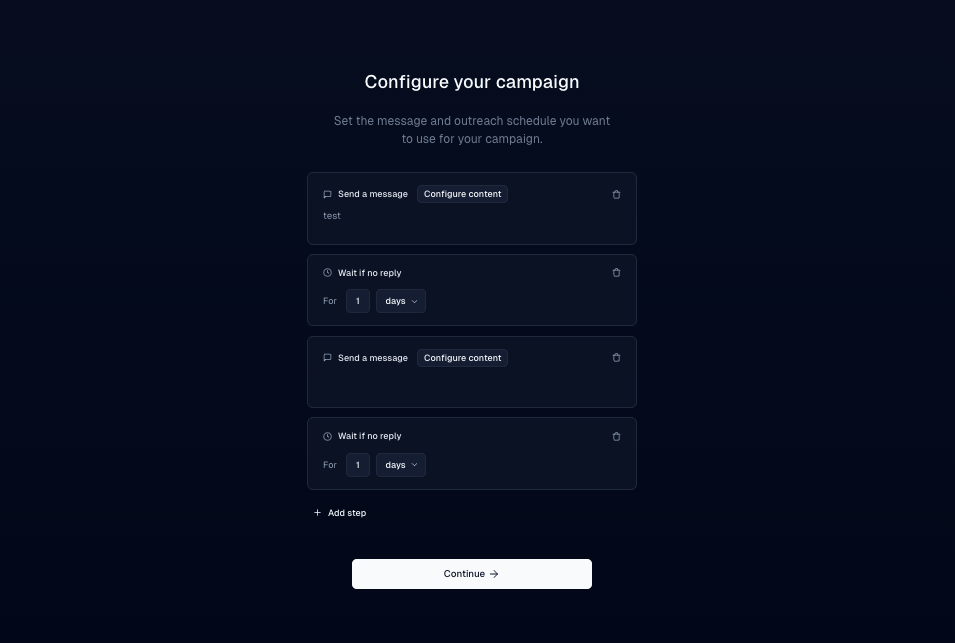
Send a first DM, then follow-ups after a delay if the lead hasn't replied.
1. Write the first message.
2. Click **Add Step**, set a delay (for example 1 day), and write the follow-up.
3. Repeat for as many steps as you need, then review timing and copy.
When someone replies, the sequence stops for that lead — [Campaign stages and results](/help/sales/campaign-results).
## Personalize with variables
Variables fill lead fields into each DM so messages aren't identical.
1. In the message editor, open the **Custom Variable** control.
2. Choose a field such as **First Name**. Inboxapp substitutes each lead's value at send time.
 Insert variables from the picker. Typing placeholder syntax by hand can break
personalization.
Variables come from the columns on the campaign's lead list, plus first name. To add one, add a column to the list, or create it from the variable picker.
## Schedule across time zones
Set the schedule in your timezone; Inboxapp adjusts delivery for recipients where possible.
1. Set the send window or schedule. Prefer recipients' daytime hours — morning or afternoon local time.
2. Check the timezone preview and summary before you launch.
Insert variables from the picker. Typing placeholder syntax by hand can break
personalization.
Variables come from the columns on the campaign's lead list, plus first name. To add one, add a column to the list, or create it from the variable picker.
## Schedule across time zones
Set the schedule in your timezone; Inboxapp adjusts delivery for recipients where possible.
1. Set the send window or schedule. Prefer recipients' daytime hours — morning or afternoon local time.
2. Check the timezone preview and summary before you launch.
 ## Compare copy with split lists
There's no A/B test inside a single campaign. To compare copy:
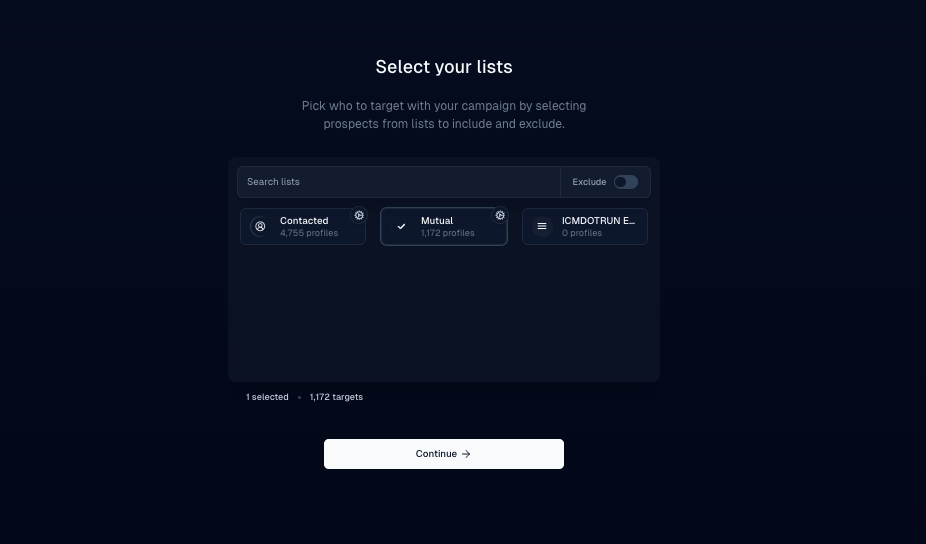
1. Split one audience into two lists of about the same size.
2. Create **Campaign A** for List A and **Campaign B** for List B.
3. Keep every setting the same except **one** thing: opening line, CTA, tone, or personalization.
4. Launch both at the same time and let them run long enough for meaningful reply counts.
5. Compare reply rates on **Overview** — [Campaign stages and results](/help/sales/campaign-results) — and roll the winner into future campaigns.
## Related
* [Create your first campaign](/help/campaigns/build/create-your-first-campaign)
* [Outreach best practices](/help/sales/best-practices)
* [Campaign troubleshooting](/help/sales/campaign-troubleshooting)
Still stuck? Contact support from the app.
This documentation is built and hosted on [Mintlify](https://mintlify.com), a developer documentation platform.
## Compare copy with split lists
There's no A/B test inside a single campaign. To compare copy:
1. Split one audience into two lists of about the same size.
2. Create **Campaign A** for List A and **Campaign B** for List B.
3. Keep every setting the same except **one** thing: opening line, CTA, tone, or personalization.
4. Launch both at the same time and let them run long enough for meaningful reply counts.
5. Compare reply rates on **Overview** — [Campaign stages and results](/help/sales/campaign-results) — and roll the winner into future campaigns.
## Related
* [Create your first campaign](/help/campaigns/build/create-your-first-campaign)
* [Outreach best practices](/help/sales/best-practices)
* [Campaign troubleshooting](/help/sales/campaign-troubleshooting)
Still stuck? Contact support from the app.
This documentation is built and hosted on [Mintlify](https://mintlify.com), a developer documentation platform.