> ## Documentation Index
> Fetch the complete documentation index at: https://docs.inboxapp.com/llms.txt
> Use this file to discover all available pages before exploring further.
# Lead lists, tags, and filters
> Create a lead list, add people to it, and organize leads with tags, custom fields, and filters.
export const Youtube = ({id, title = "YouTube video"}) => {
const [playing, setPlaying] = useState(false);
const poster = `https://i.ytimg.com/vi/${id}/hqdefault.jpg`;
if (playing) {
return
;
};
Available on Pro. See [Plans](/get-started/plans).
## Create a list
1. Go to **Leads**.
2. Click **Create New List**.
3. Name the list (for example, “Investors”) and click **Save**.
## Add leads
From **Add Leads** you can import from:
* Inboxapp’s X prospecting database (**Search Leads**)
* A CSV — [Import leads from a CSV](/help/leads-management/importing/importing-leads-to-inboxapp-from-a-csv-file)
* Plain text of usernames or IDs
* Followers or following of an X account, X lists, and post engagement — [Import leads from X](/help/sales/import-leads)
Credits apply on earlier Pro plans — see [Plans and credits](/help/billing/billing-plans-and-credits).
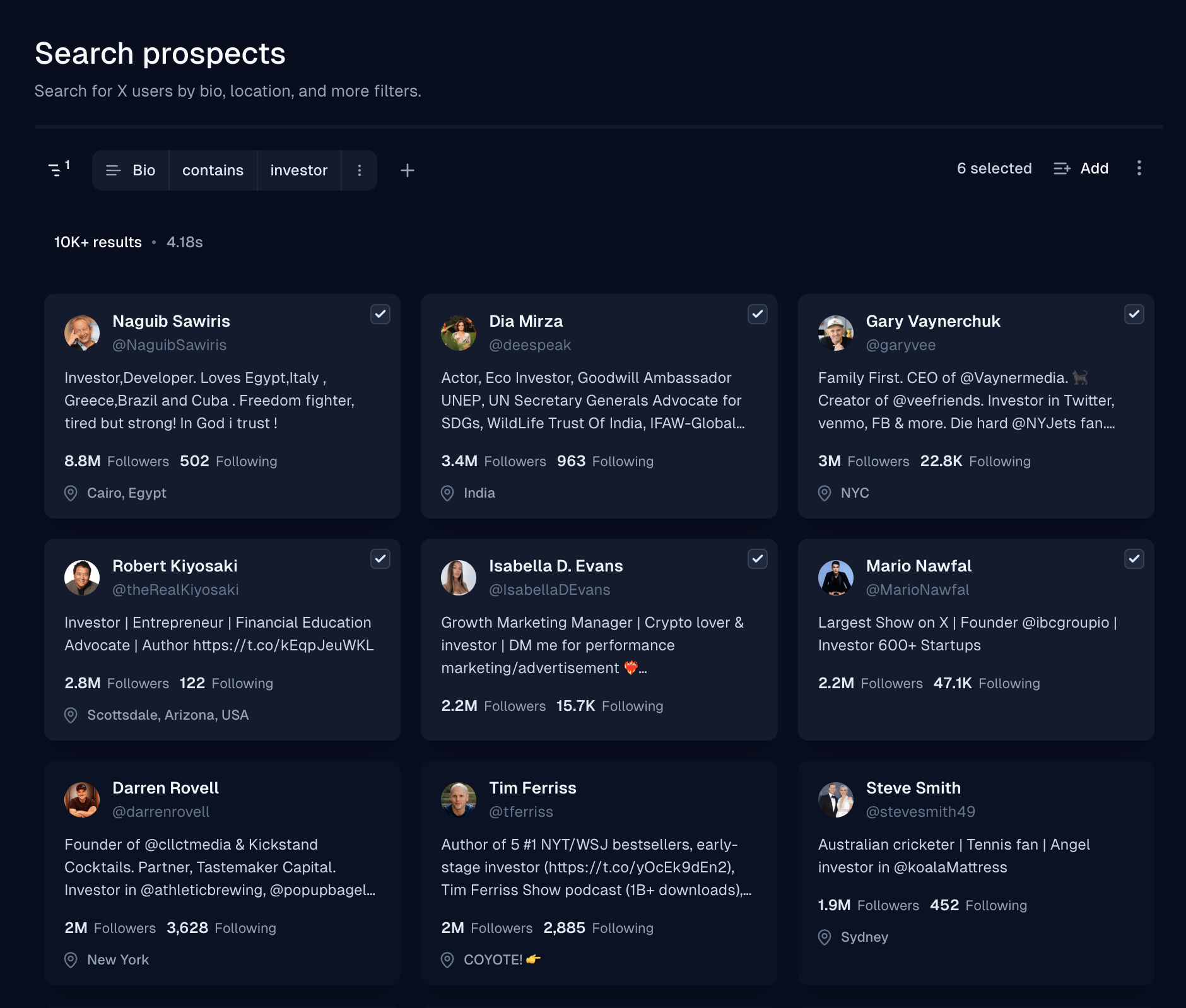
### Example: search the database
1. Choose **Search Leads**.
2. Filter by keyword — for example **Bio → Contains → investor**.
3. Select profiles (drag to select), click **Add to List**, and choose your list.
Bio filtering applies to database profiles, not leads you've already imported.
## Tags
1. Go to **Settings → Tags**.
2. Create, edit, or delete tags, and assign colors for quick visual cues.
Common uses: source, priority, interest, client, or campaign cohort. Tags apply to both leads and conversations.
## Custom fields
1. Open the custom fields section in **Settings**.
2. Add the fields you need — for example Lead Source or Interest Level.
3. Fill them in on leads as you work.
Custom fields can be inserted into campaign messages — [Sequences, personalization, and scheduling](/help/sales/sequences).
## Filter and segment
* Segment lists by interest, engagement, role, or industry, then tailor messaging per segment.
* Filter exports by date, status, tag, source, or custom field — [Export leads](/help/leads-management/organize/exporting-leads-from-inboxapp).
Pipeline statuses live under **Settings → Statuses** — [Add statuses to the pipeline](/help/inbox/statuses).
## Related
* [Import leads from X](/help/sales/import-leads)
* [Reachable leads and the Contacted list](/help/sales/reachable-leads)
* [Create your first campaign](/help/campaigns/build/create-your-first-campaign)
Still stuck? Contact support from the app.
This documentation is built and hosted on [Mintlify](https://mintlify.com), a developer documentation platform.
 Bio filtering applies to database profiles, not leads you've already imported.
## Tags
1. Go to **Settings → Tags**.
2. Create, edit, or delete tags, and assign colors for quick visual cues.
Common uses: source, priority, interest, client, or campaign cohort. Tags apply to both leads and conversations.
## Custom fields
1. Open the custom fields section in **Settings**.
2. Add the fields you need — for example Lead Source or Interest Level.
3. Fill them in on leads as you work.
Custom fields can be inserted into campaign messages — [Sequences, personalization, and scheduling](/help/sales/sequences).
## Filter and segment
* Segment lists by interest, engagement, role, or industry, then tailor messaging per segment.
* Filter exports by date, status, tag, source, or custom field — [Export leads](/help/leads-management/organize/exporting-leads-from-inboxapp).
Pipeline statuses live under **Settings → Statuses** — [Add statuses to the pipeline](/help/inbox/statuses).
## Related
* [Import leads from X](/help/sales/import-leads)
* [Reachable leads and the Contacted list](/help/sales/reachable-leads)
* [Create your first campaign](/help/campaigns/build/create-your-first-campaign)
Still stuck? Contact support from the app.
This documentation is built and hosted on [Mintlify](https://mintlify.com), a developer documentation platform.
Bio filtering applies to database profiles, not leads you've already imported.
## Tags
1. Go to **Settings → Tags**.
2. Create, edit, or delete tags, and assign colors for quick visual cues.
Common uses: source, priority, interest, client, or campaign cohort. Tags apply to both leads and conversations.
## Custom fields
1. Open the custom fields section in **Settings**.
2. Add the fields you need — for example Lead Source or Interest Level.
3. Fill them in on leads as you work.
Custom fields can be inserted into campaign messages — [Sequences, personalization, and scheduling](/help/sales/sequences).
## Filter and segment
* Segment lists by interest, engagement, role, or industry, then tailor messaging per segment.
* Filter exports by date, status, tag, source, or custom field — [Export leads](/help/leads-management/organize/exporting-leads-from-inboxapp).
Pipeline statuses live under **Settings → Statuses** — [Add statuses to the pipeline](/help/inbox/statuses).
## Related
* [Import leads from X](/help/sales/import-leads)
* [Reachable leads and the Contacted list](/help/sales/reachable-leads)
* [Create your first campaign](/help/campaigns/build/create-your-first-campaign)
Still stuck? Contact support from the app.
This documentation is built and hosted on [Mintlify](https://mintlify.com), a developer documentation platform.