> ## Documentation Index
> Fetch the complete documentation index at: https://docs.inboxapp.com/llms.txt
> Use this file to discover all available pages before exploring further.
# Import leads from an X list
> Import members or followers of an X list into a lead list.
Import people from an X list into Inboxapp.
1. Open a lead list (or [create one](/help/leads-management/organize/create-your-first-lead-list)).
2. Click **Add Leads**.
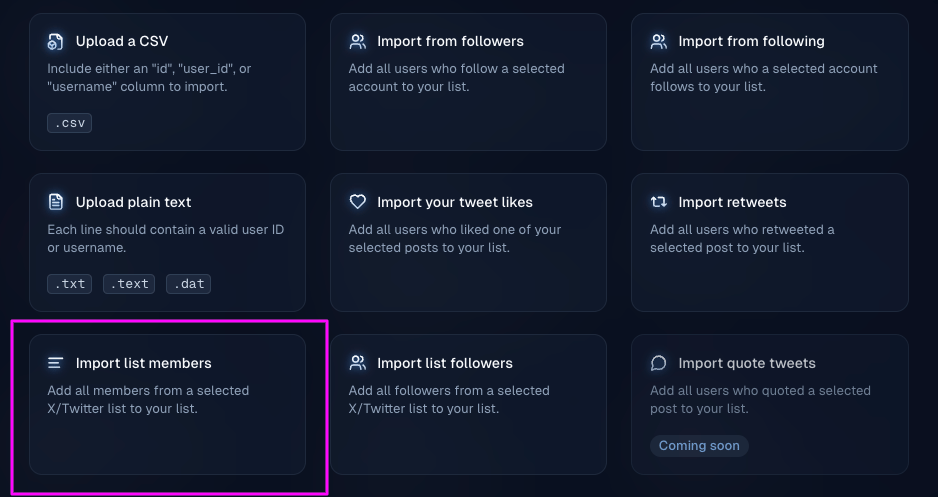
3. Choose the X list import option.
4. Pick whether to import **list members** or **list followers**.
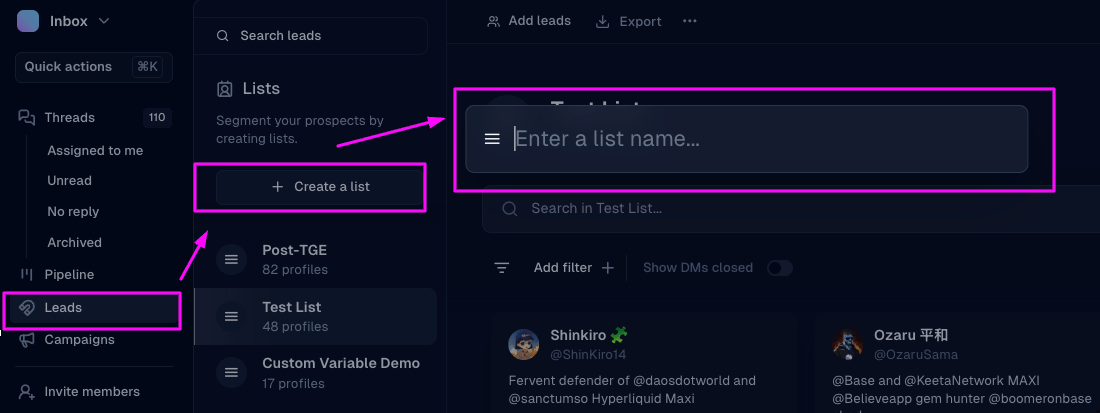 5. Enter the list details and start the import.
 Import runs in the background. Credits apply on **Pro** — see [Plans and credits](/help/billing/billing-plans-and-credits).
## Related
* [Import leads from followers](/help/leads-management/importing/importing-leads-to-inboxapp-from-followers-of-an-x-twitter-account)
* [Import leads from a CSV](/help/leads-management/importing/importing-leads-to-inboxapp-from-a-csv-file)
* [Troubleshooting lead imports](/help/leads-management/importing/troubleshooting-lead-imports-csv-followers-quick-guide)
Still stuck? Contact support from the app.
Import runs in the background. Credits apply on **Pro** — see [Plans and credits](/help/billing/billing-plans-and-credits).
## Related
* [Import leads from followers](/help/leads-management/importing/importing-leads-to-inboxapp-from-followers-of-an-x-twitter-account)
* [Import leads from a CSV](/help/leads-management/importing/importing-leads-to-inboxapp-from-a-csv-file)
* [Troubleshooting lead imports](/help/leads-management/importing/troubleshooting-lead-imports-csv-followers-quick-guide)
Still stuck? Contact support from the app.