> ## Documentation Index
> Fetch the complete documentation index at: https://docs.inboxapp.com/llms.txt
> Use this file to discover all available pages before exploring further.
# Personalize DMs with custom variables
> Insert lead fields such as first name into campaign messages with the custom variable control.
Custom variables fill lead fields into each DM so messages aren’t identical.
1. Open **Campaigns** and create or edit a campaign.
2. Name the campaign, then continue.
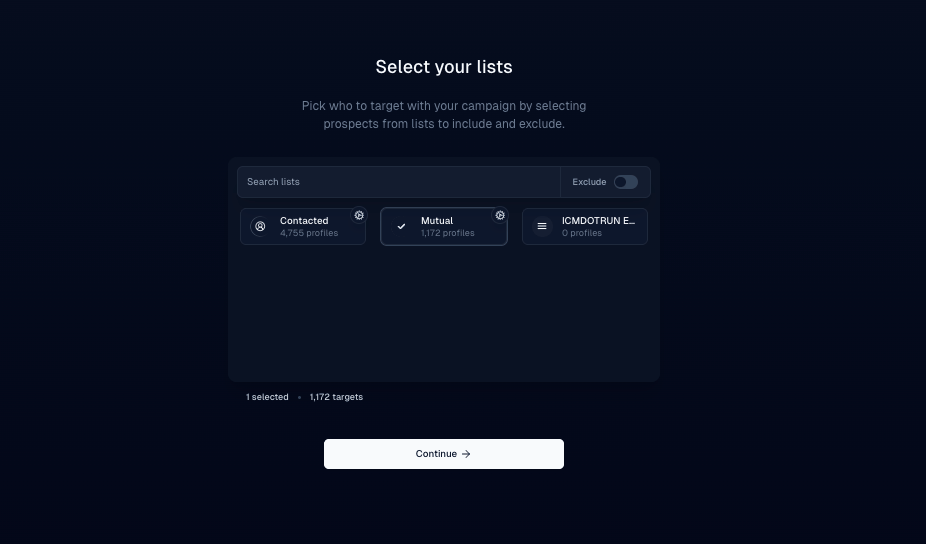
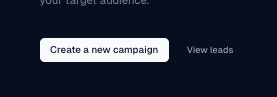 3. Select the recipient list and continue.
 4. In the message editor, open the **Custom Variable** control (often shown as an asterisk or similar).
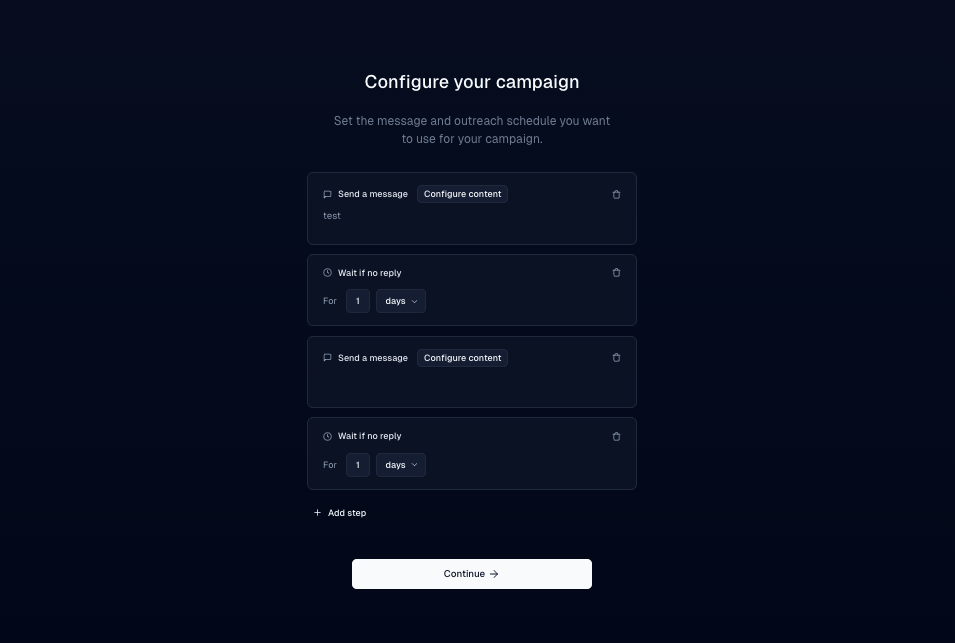 5. Choose a field such as **First Name**. Inboxapp substitutes each lead’s value at send time.
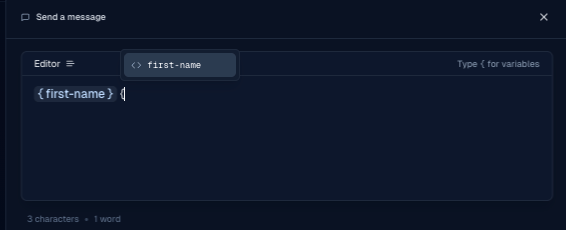 Insert variables from the picker — don’t type placeholder syntax by hand, or personalization may fail.
## Related
* [Create your first campaign](/help/campaigns/build/create-your-first-campaign)
* [Multi-step sequences](/help/campaigns/build/how-to-design-multi-step-dm-sequences)
* [Tags and custom fields](/help/leads-management/organize/tags-and-custom-fields)
Still stuck? Contact support from the app.
Insert variables from the picker — don’t type placeholder syntax by hand, or personalization may fail.
## Related
* [Create your first campaign](/help/campaigns/build/create-your-first-campaign)
* [Multi-step sequences](/help/campaigns/build/how-to-design-multi-step-dm-sequences)
* [Tags and custom fields](/help/leads-management/organize/tags-and-custom-fields)
Still stuck? Contact support from the app.