
> ## Documentation Index
> Fetch the complete documentation index at: https://docs.inboxapp.com/llms.txt
> Use this file to discover all available pages before exploring further.

# Add statuses to the pipeline

> Create, reorder, edit, and delete CRM pipeline statuses in Settings.

export const Youtube = ({id, title = "YouTube video"}) => {
  const [playing, setPlaying] = useState(false);
  const poster = `https://i.ytimg.com/vi/${id}/hqdefault.jpg`;
  if (playing) {
    return <div className="relative my-6 aspect-video overflow-hidden rounded-xl border bg-gray-900">
        <iframe title={title} src={`https://www.youtube-nocookie.com/embed/${id}?autoplay=1&rel=0`} allow="accelerometer; autoplay; clipboard-write; encrypted-media; gyroscope; picture-in-picture" allowFullScreen className="absolute inset-0 h-full w-full" />
      </div>;
  }
  return <div className="relative my-6 aspect-video overflow-hidden rounded-xl border bg-gray-900">
      <button type="button" onClick={() => setPlaying(true)} className="group absolute inset-0 flex w-full items-center justify-center" aria-label={`Play ${title}`}>
        <img src={poster} alt="" className="absolute inset-0 h-full w-full object-cover" />
        <span className="relative z-10 flex h-14 w-14 items-center justify-center rounded-full bg-black/70 text-white shadow-lg transition group-hover:scale-105 group-hover:bg-black/85">
          <svg viewBox="0 0 24 24" className="ml-0.5 h-6 w-6 fill-current" aria-hidden>
            <path d="M8 5v14l11-7z" />
          </svg>
        </span>
      </button>
      <a href={`https://www.youtube.com/watch?v=${id}`} target="_blank" rel="noreferrer" className="sr-only">
        Watch on YouTube
      </a>
    </div>;
};

Customize the stages of your CRM pipeline.

<Youtube id="LcM0XKD_wBo" />

1. Log in, select your team, and open **Settings**.

<Frame>
  <img src="https://mintcdn.com/inboxtechinc/dgSDSEato981ZoWO/images/help/how-to-add-statuses-to-the-pipeline/image-1498175832.png?fit=max&auto=format&n=dgSDSEato981ZoWO&q=85&s=5c438dfe6af9422269981c9388af1d83" alt="Settings entry point in Inboxapp" width="286" height="106" data-path="images/help/how-to-add-statuses-to-the-pipeline/image-1498175832.png" />
</Frame>

2. Open **Statuses** to see your current stages.
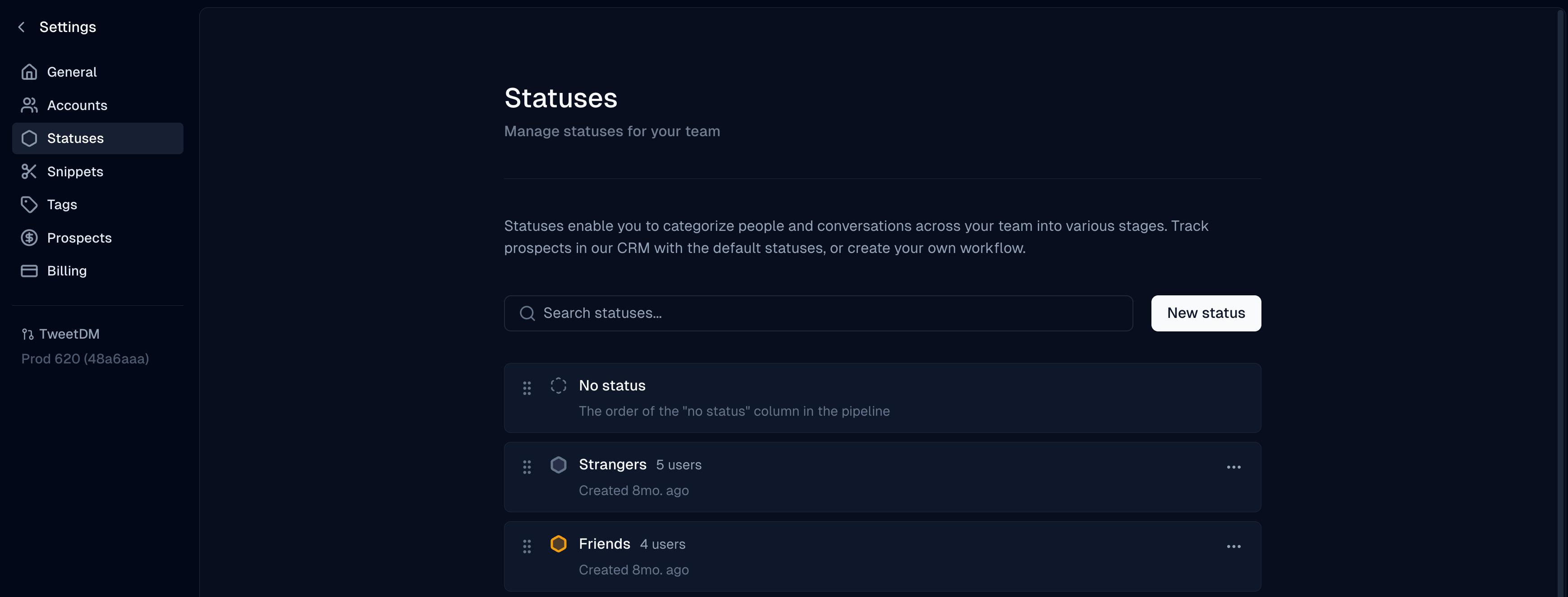
<Frame>
  <img src="https://mintcdn.com/inboxtechinc/dgSDSEato981ZoWO/images/help/how-to-add-statuses-to-the-pipeline/image-1498178575.png?fit=max&auto=format&n=dgSDSEato981ZoWO&q=85&s=e23c50a66a7073189b8cec32a9b0a845" alt="Statuses list in Settings" width="3478" height="1324" data-path="images/help/how-to-add-statuses-to-the-pipeline/image-1498178575.png" />
</Frame>

3. Click **Add Status**, name it, and pick a color.
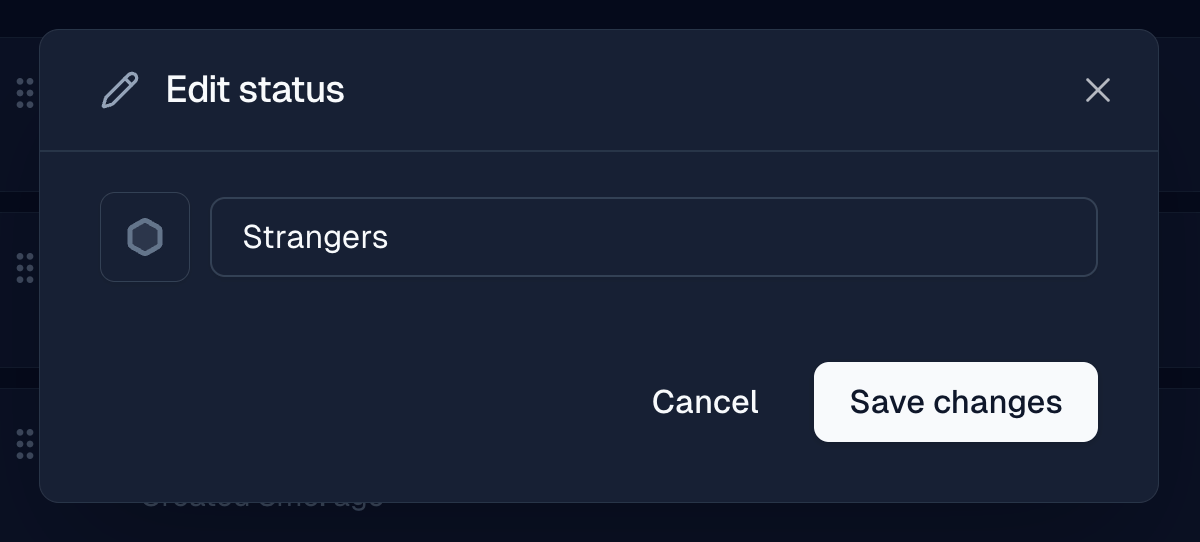
<Frame>
  <img src="https://mintcdn.com/inboxtechinc/dgSDSEato981ZoWO/images/help/how-to-add-statuses-to-the-pipeline/image-1498179413.png?fit=max&auto=format&n=dgSDSEato981ZoWO&q=85&s=fb86679fe37cc078810ec5e046396c0f" alt="Add Status form with name and color" width="1200" height="542" data-path="images/help/how-to-add-statuses-to-the-pipeline/image-1498179413.png" />
</Frame>

4. Drag and drop statuses to change their order in the pipeline.
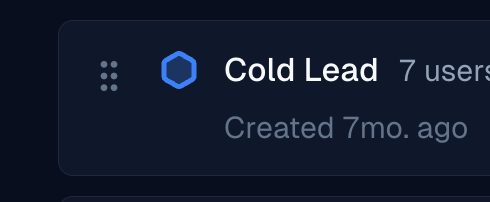
<Frame>
  <img src="https://mintcdn.com/inboxtechinc/dgSDSEato981ZoWO/images/help/how-to-add-statuses-to-the-pipeline/image-1498181136.png?fit=max&auto=format&n=dgSDSEato981ZoWO&q=85&s=9c5f66170aedbe43dd43898d8be52b6b" alt="Drag handles for reordering statuses" width="490" height="202" data-path="images/help/how-to-add-statuses-to-the-pipeline/image-1498181136.png" />
</Frame>

5. Use the **⋯** menu on a status to edit or delete it.
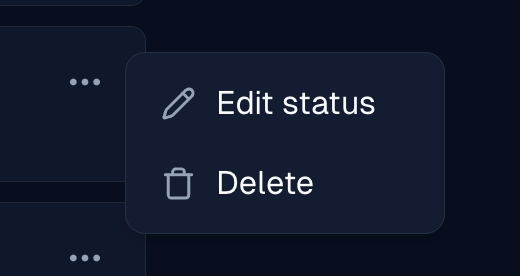
<Frame>
  <img src="https://mintcdn.com/inboxtechinc/dgSDSEato981ZoWO/images/help/how-to-add-statuses-to-the-pipeline/image-1498181860.png?fit=max&auto=format&n=dgSDSEato981ZoWO&q=85&s=28579cfc5c46bd8cc7dbbe0b013b86c5" alt="Status overflow menu with edit and delete" width="520" height="276" data-path="images/help/how-to-add-statuses-to-the-pipeline/image-1498181860.png" />
</Frame>

## Related

* [Personalize Inboxapp](/help/getting-started-with-inboxapp/personalize-inboxapp-to-your-needs)
* [Tags and custom fields](/help/leads-management/organize/tags-and-custom-fields)

Still stuck? Contact support from the app.
