> ## Documentation Index
> Fetch the complete documentation index at: https://docs.inboxapp.com/llms.txt
> Use this file to discover all available pages before exploring further.
# Add an X account to Inboxapp
> Install the Chrome extension, open X, and link your account with the Inboxapp floating icon.
export const Youtube = ({id, title = "YouTube video"}) => {
const [playing, setPlaying] = useState(false);
const poster = `https://i.ytimg.com/vi/${id}/hqdefault.jpg`;
if (playing) {
return
;
};
## 1. Sign up or log in
Go to [inboxapp.com](https://inboxapp.com) and create an account, or log in.
## 2. Install the Chrome extension
Install the [Inboxapp Chrome extension](https://chromewebstore.google.com/detail/inbox/manipndiogdfeenejomojogbbcbenioe) from the Chrome Web Store.
## 3. Open X
Go to [x.com](https://x.com) and make sure you’re logged into the account you want to connect.
## 4. Link the account
1. Find the **Inboxapp floating icon** on x.com.
2. Click it and select the account to link.
3. Click **Link**.
## 5. Wait for sync
Inboxapp starts syncing automatically. When sync finishes, the account is available in your workspace. See [How Inboxapp syncs your DMs](/help/getting-started-with-inboxapp/how-inboxapp-syncs-your-dms-and-what-to-expect).
If you use XChat, you’ll be asked for your **XChat PIN** — [What is XChat](/help/getting-started-with-inboxapp/what-is-xchat-and-how-use-it-with-our-platform).
## Related
* [Messages not syncing](/help/troubleshooting/messages-not-syncing-try-these-fixes)
* [Chrome extension troubleshooting](/help/troubleshooting/chrome-extension-troubleshooting)
* [Share your X inbox with a team member](/help/account/share-your-x-twitter-inbox-with-a-team-member)
Still stuck? Contact support from the app.
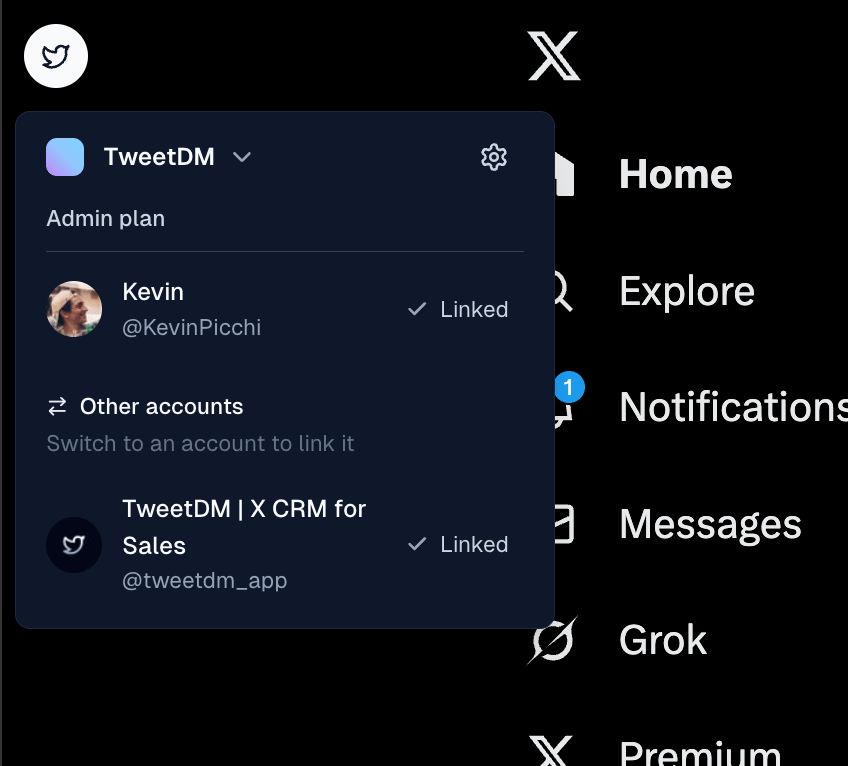 1. Find the **Inboxapp floating icon** on x.com.
2. Click it and select the account to link.
3. Click **Link**.
## 5. Wait for sync
Inboxapp starts syncing automatically. When sync finishes, the account is available in your workspace. See [How Inboxapp syncs your DMs](/help/getting-started-with-inboxapp/how-inboxapp-syncs-your-dms-and-what-to-expect).
If you use XChat, you’ll be asked for your **XChat PIN** — [What is XChat](/help/getting-started-with-inboxapp/what-is-xchat-and-how-use-it-with-our-platform).
## Related
* [Messages not syncing](/help/troubleshooting/messages-not-syncing-try-these-fixes)
* [Chrome extension troubleshooting](/help/troubleshooting/chrome-extension-troubleshooting)
* [Share your X inbox with a team member](/help/account/share-your-x-twitter-inbox-with-a-team-member)
Still stuck? Contact support from the app.
1. Find the **Inboxapp floating icon** on x.com.
2. Click it and select the account to link.
3. Click **Link**.
## 5. Wait for sync
Inboxapp starts syncing automatically. When sync finishes, the account is available in your workspace. See [How Inboxapp syncs your DMs](/help/getting-started-with-inboxapp/how-inboxapp-syncs-your-dms-and-what-to-expect).
If you use XChat, you’ll be asked for your **XChat PIN** — [What is XChat](/help/getting-started-with-inboxapp/what-is-xchat-and-how-use-it-with-our-platform).
## Related
* [Messages not syncing](/help/troubleshooting/messages-not-syncing-try-these-fixes)
* [Chrome extension troubleshooting](/help/troubleshooting/chrome-extension-troubleshooting)
* [Share your X inbox with a team member](/help/account/share-your-x-twitter-inbox-with-a-team-member)
Still stuck? Contact support from the app.